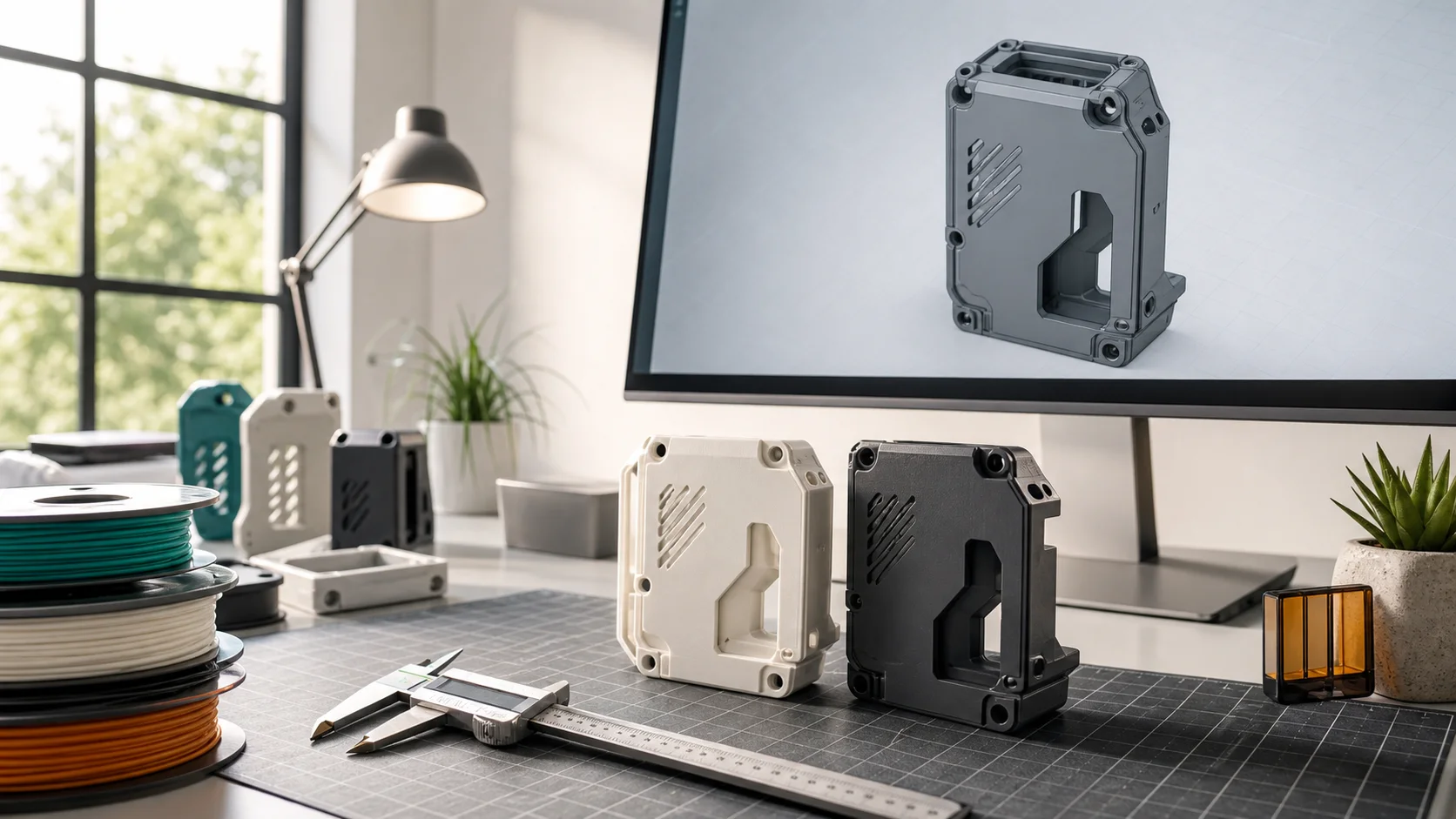
How to Send Us a Model for 3D Printing?
Guide to preparing a 3D model for successful printing
Before Sending a Model - What's Important to Know
The quality of the final 3D print is fundamentally influenced by how the 3D model is prepared. A properly prepared model ensures not only a flawless print but also saves time and costs. The most common issues include unclosed surfaces (non-watertight models), too thin walls, or an inappropriately chosen file format.
You don't need to be a 3D modeling expert. We're here to help you check and adjust your model for printing. We offer free consultation and basic adjustments as part of the service. If you're unsure whether your model is suitable for printing, just send it to us and we'll advise you.
File Format
Recommended formats:
- STL (most common format for 3D printing)
- OBJ (preserves colors and textures)
These formats are universal and supported by all 3D printers.
Other accepted formats:
- 3MF
- STEP
If you have a model in another format, contact us and we'll be happy to help with conversion.
Editable or export format?
The formats above differ in more than their extension. What matters is whether the model can still be changed later, and that is decided the moment you save it.
Editable (CAD) formats
- STEP - the universal exchange format that opens in any CAD
- F3D (Fusion 360), SLDPRT (SolidWorks) - native projects with design history
They describe the geometry through surfaces and solids, often including the history of each step. A dimension, a hole or a fillet can be changed without modelling the part again.
Export (mesh) formats
- STL - a triangle mesh with no dimensions and no constraints
- OBJ, 3MF - also meshes; 3MF additionally carries the print settings
They are created by exporting from CAD and are perfectly sufficient for printing. Editing them afterwards is laborious: a triangle mesh no longer records that a hole is a hole.
Still planning to change the part?
Send us the source CAD file along with the STL, ideally as STEP. Changing a dimension or adding an opening is then far simpler. If you do not have the source, get in touch and we will tell you what can be done with the model.
Model Check
The model must be "watertight" (without holes)
A 3D model should be a closed object without holes in the mesh. Open models can cause problems during printing.
Tip:
Most 3D modeling programs have tools to check and repair model watertightness.
Check Wall Thickness
Minimum recommended wall thickness:
Walls that are too thin may be fragile or may not print correctly.
Optimization
For FDM printing:
Avoid large overhangs (more than 45°)
Consider model orientation to minimize supports
Split large models into smaller parts
Need help?
Send us your model and we'll check it for free! Our technicians will advise you on optimization for the best print result.
FAQ
Frequently Asked Questions About Model Preparation
Which file format should I upload for 3D printing?
For the online calculator, we recommend STL, OBJ, or 3MF. You can send STEP and other CAD formats through the contact form.
Does the 3D model need to be watertight?
Yes. It should form a closed volume without holes, overlapping faces, or disconnected parts so it can be converted reliably into print layers.
What is the minimum wall thickness for FDM printing?
We recommend 1 to 2 mm as a starting point. Load-bearing parts need thicker walls depending on material, layer orientation, and intended use.
Are overhangs a problem?
Overhangs above roughly 45 degrees may need supports. A better orientation or geometry adjustment can often reduce material use and support marks.
Can I see the price without submitting an inquiry?
Yes. Upload the model to the online calculator, choose the material and print settings, and see the price before placing an order.
Ready to send your model?
Upload an STL, OBJ, or 3MF file, choose a material, and see the price before placing an order.
Calculate Print Price3D printing services Compare FDM vs SLA 3D Printing Technologies 3D printing